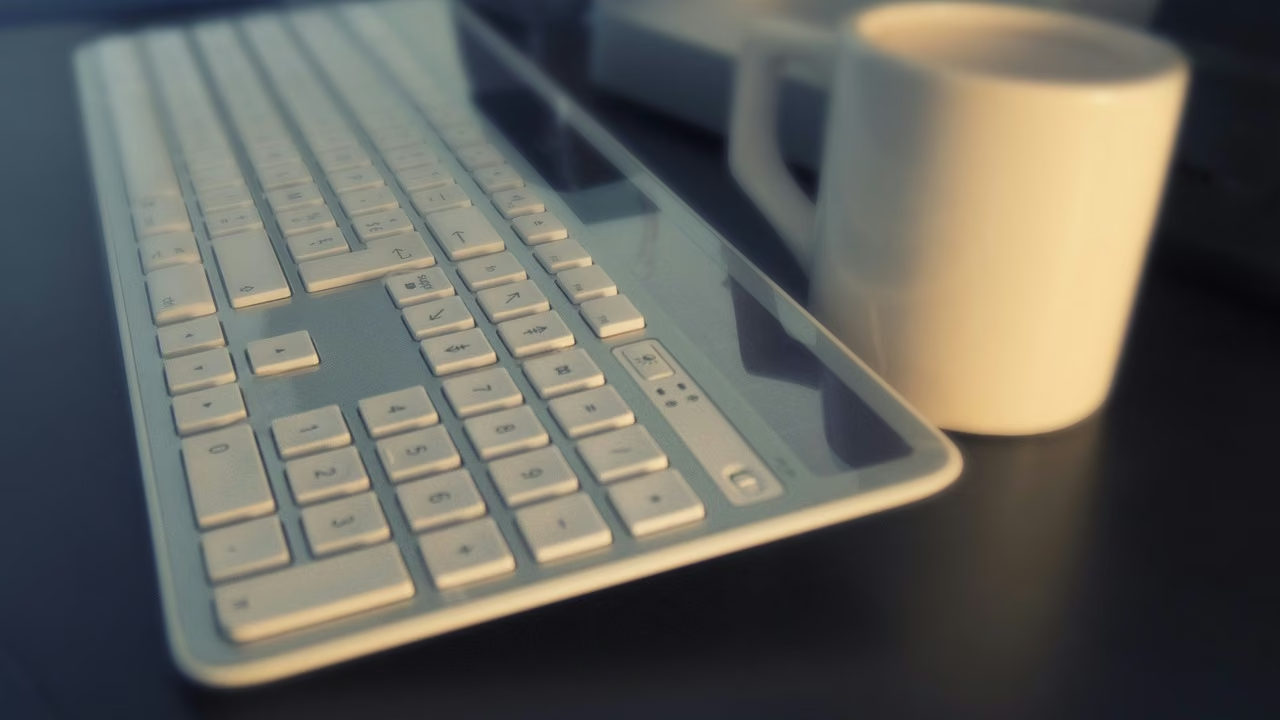
The keyboard reviewers most often recommend for office work isn’t mechanical at all. RTINGS’ current pick as the best keyboard for work, the Logitech MX Keys S, uses low, laptop-style keys that feel familiar to anyone who types on a laptop all day. Mechanical keyboards get the attention online, but for long working days, quiet and comfortable usually wins.
There’s no single best wireless keyboard for work, because the right one depends on your desk. So instead of a ranking, here’s what to check, in order, with the keyboards that get each point right. A comparison table at the end has prices and battery life.
How many devices will it connect to?
This is the question that sorts most people. If you move between a work laptop, a personal computer and a tablet, look for multi-device switching: dedicated keys that swap the keyboard from one device to another in a second.
- The Logitech MX Keys S remembers three devices, with an Easy-Switch key for each.
- The cheap Logitech Pebble Keys 2 K380s does the same over Bluetooth, and Trusted Reviews found the switching near-instant.
- Apple’s Magic Keyboard has no switching keys. It’s built to stay paired with one Mac.
Bluetooth, a USB receiver, or both?
Bluetooth is convenient and works with phones and tablets. A small USB receiver gives a dedicated link to one computer, which helps on desktops without Bluetooth.
The MX Keys S does both: Bluetooth, or Logitech’s Logi Bolt receiver in the box. Logitech notes it doesn’t work with its other, older USB receivers. Trusted Reviews found the connection virtually flawless either way.
Do you need a number pad?
If you work in spreadsheets, accounts or anything with lots of numbers, a full-size keyboard with a number pad saves real time. If you don’t, a compact keyboard leaves more room for your mouse, which keeps your arm closer to your body.
- Full-size: the MX Keys S includes a number pad. Apple sells a Magic Keyboard with Touch ID and Numeric Keypad.
- Compact: the Pebble Keys 2 and the standard Magic Keyboard have no number pad. Neither does the Keychron K2, a 75% layout that keeps the arrow and navigation keys.
Mac, Windows, or both?
Key labels and shortcuts differ between Macs and PCs, so match the keyboard to the computer you use most.
- Mac only: the Magic Keyboard with Touch ID lets you unlock your Mac and approve purchases with a fingerprint. Touch ID needs a Mac with Apple silicon, and B&H lists the keyboard as officially compatible with Apple’s systems only.
- Windows, or a mix: the MX Keys S works with Windows, macOS, ChromeOS, Linux and iPadOS, and sells a Mac version with Mac key labels. The Pebble Keys 2 works across systems too, but Tom’s Guide found Mac users lose some functions.
Laptop-style or mechanical keys?
Low-profile keys, the scissor-style kind in the MX Keys S, the Magic Keyboard and the Pebble, are quiet and need little finger travel. That’s a good fit for shared offices and video calls.
Mechanical keyboards have taller keys with individual switches. Many people find them more satisfying and precise, but they’re louder and taller, so some need a wrist rest. If you want one, the Keychron K2 is the common budget entry point: PC Gamer calls it its best budget wireless pick, from $69, with a battery it rates at around 240 hours.
Backlight or battery life?
A backlight helps in a dim room and costs battery. Check how a keyboard handles the trade-off:
- MX Keys S: backlighting that turns on as your hands approach and adjusts to the room. Logitech rates it at 10 days per charge with the backlight on, or up to 5 months with it off, recharged over USB-C.
- Magic Keyboard: no backlight, about a month between charges.
- Pebble Keys 2: no backlight, but up to 36 months on two AAA batteries, by Logitech’s rating.
Your wrists
Whatever you buy, set it up so your wrists stay roughly straight. A low keyboard close to the desk edge and level with your elbows usually beats a steep one propped up on its feet. If you already have wrist pain, look at split ergonomic keyboards and talk to a doctor or physiotherapist rather than relying on a product page.
Wireless keyboards for work compared
| Keyboard | Best for | Layout | Connection | Battery (maker’s claim) | US price |
|---|---|---|---|---|---|
| Logitech MX Keys S | Most people; up to 3 devices | Full-size, number pad | Bluetooth or Logi Bolt receiver | 10 days with backlight, up to 5 months without | $109.99 |
| Apple Magic Keyboard with Touch ID | Mac users | Compact (numeric keypad version available) | Bluetooth, USB-C cable | About 1 month | $149; $179 to $199 with keypad |
| Logitech Pebble Keys 2 K380s | Tight budgets and travel | Compact | Bluetooth, 3 devices | Up to 36 months (2 AAA) | $39.99 |
| Keychron K2 (version 2) | Mechanical typing | 75%, no number pad | Bluetooth or cable | Around 240 hours | From $69 |
Prices are US list prices; all of these are often discounted, so check the current price before you buy.
If you’re kitting out a desk for focus, the other half is sound: our guide to the best noise-cancelling headphones covers which pair fits which kind of day. And if the keyboard is for a student, pair it with our best laptops for students guide.
SOURCES
- RTINGS: The 5 best office keyboards of 2026
- RTINGS: The best keyboards (best cheap keyboard)
- Logitech: MX Keys S specs
- Logitech: MX Keys S connectivity
- NBC Select: The best keyboards of 2026 (MX Keys S price)
- Trusted Reviews: Logitech MX Keys S review
- Macworld: Apple Magic Keyboard prices
- B&H: Magic Keyboard with Touch ID and Numeric Keypad
- Trusted Reviews: Logitech Pebble Keys 2 K380s review
- Tom's Guide: Logitech Pebble Keys 2 K380s review
- Best Buy: Logitech Pebble Keys 2 K380s
- PC Gamer: Best wireless gaming keyboard (Keychron K2)
- SpecPicks: Keychron K2 v2 layout (citing RTINGS)
- B&H: Logitech MX Keys S (supported systems)
- AIO: Magic Keyboard with Touch ID and Numeric Keypad listing (battery)