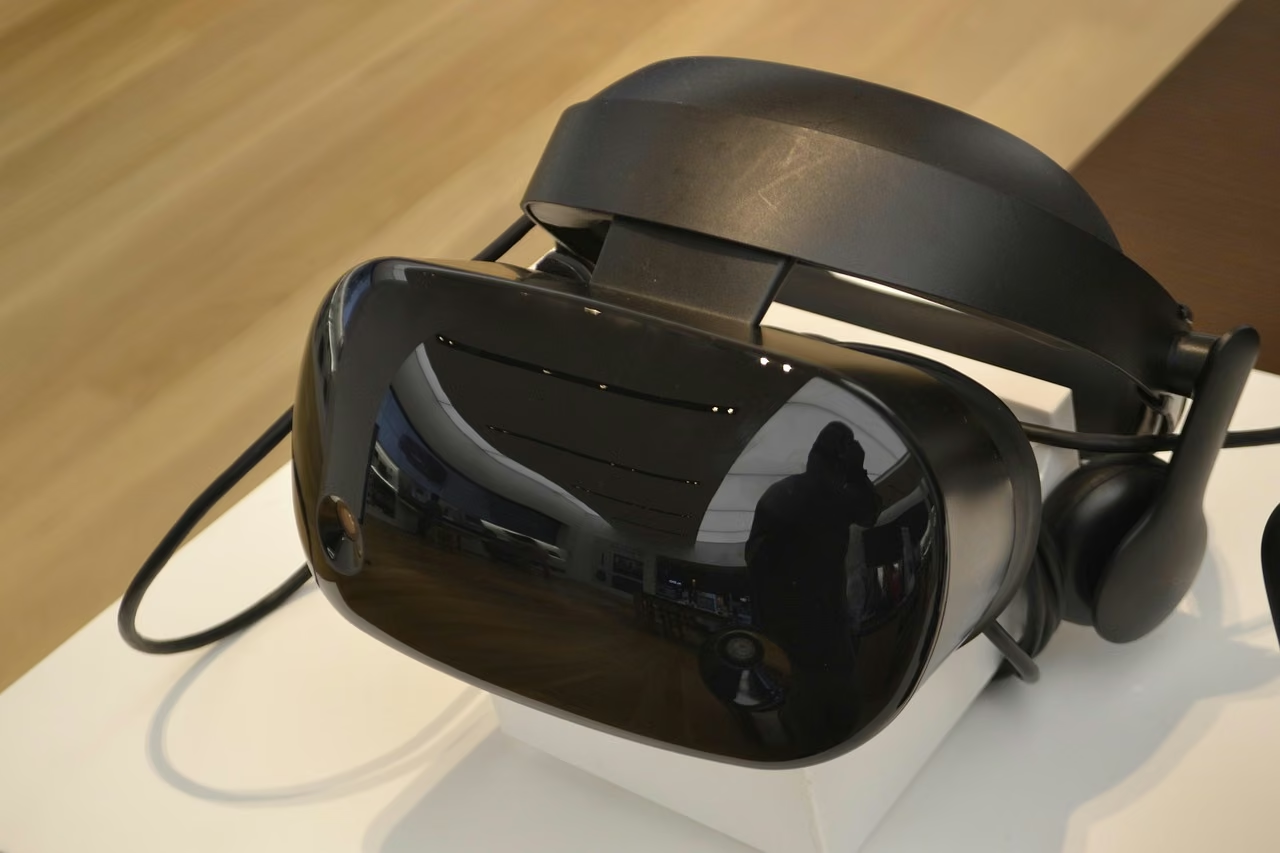
VR is more fun when the people watching can see why you’re ducking behind the sofa. A Meta Quest headset can send its view to a TV, a phone or a computer, so the room can follow along or take turns. Here’s how to cast a Meta Quest to your TV, with the alternatives when your TV won’t cooperate.
Before you start
- Same Wi-Fi. The headset and the TV (or phone) must be on the same Wi-Fi network. If your router has separate 2.4GHz and 5GHz networks, put them on the same one.
- A TV that supports casting. Your TV needs Chromecast / Google Cast built in, or a Google TV or Chromecast device plugged in. Some TVs need casting switched on in their settings first.
- Same Meta account on the headset and in the Meta Horizon phone app, if you’re casting from or to your phone.
Cast from the headset
- Put the headset on and press the Meta button on the right controller to open the menu.
- Select the camera icon, then Cast.
- Choose your TV from the list of nearby devices.
- Select Next or Start. A red dot in your view shows that casting is on.
To stop, open the same menu and choose Stop casting.
Start casting from your phone
This is handy when a child is wearing the headset and you don’t want to take it off them.
- Open the Meta Horizon app on your phone, signed in to the same account as the headset.
- Tap the Cast icon at the top of the screen.
- Choose the headset as the source and your TV (or the phone itself) as the destination.
- Confirm. The person in the headset may need to accept a prompt.
Keep the app open while you’re casting to the phone: minimising or closing it can cut the stream.
Cast to a computer instead
If your TV isn’t playing along, open a browser on a laptop or desktop and go to horizon.meta.com/casting, signed in to your Meta account. Then choose the computer from the headset’s Cast menu. Connect the laptop to the TV with an HDMI cable and you’ve got a big screen anyway.
When your TV doesn’t appear in the list
Work down this list:
- Check it’s the same network, in the headset’s Wi-Fi settings and the TV’s network settings. Guest networks usually block casting.
- Turn on casting on the TV. Look for Chromecast or Google Cast in its settings.
- Restart the headset and the TV. Hold the headset’s power button and choose Restart.
- Restart the router if several devices are struggling.
- Use the phone route above, then mirror your phone to the TV with its own screen-mirroring feature. It’s a workaround, but it works on more TVs.
Want to share it later instead?
From the same camera menu, choose Record video to save a clip of what you see, or take a screenshot. You’ll find them in the headset’s files and, if you allow it, in the Meta Horizon app, ready to share with people who weren’t in the room.
Make it nicer for the people watching
Casting shows the view from one eye, slightly cropped. Turn the brightness up on the TV, and for fast games pick ones that don’t spin the camera around, which is as uncomfortable to watch as it is to play. Our list of VR games for beginners is a good place to start, with games grouped by how much they move you. If the picture looks washed out, a few minutes calibrating your TV helps for everything else you watch too.
FAQ
Do I need a Chromecast?
Not necessarily. Many TVs and streaming devices have Google Cast built in, including TVs running Google TV. If your TV doesn't support casting, a cheap Google TV streaming device plugged into an HDMI port adds it.
Why does the cast look laggy or blurry?
Casting sends video over your Wi-Fi, so a weak signal or a busy network lowers the quality. Move the router closer, use a less crowded Wi-Fi band, or cast to a laptop instead, which is often smoother.